
Save time with components
In Målbar LCA, you can create complete screenings and reuse them as components in new screenings.
This means less repetitive work and more consistency.
Once a component is created, it can be applied across different products, making your screenings faster, easier, and more accurate.
We’ve highlighted the most commonly used component types and described how they work.
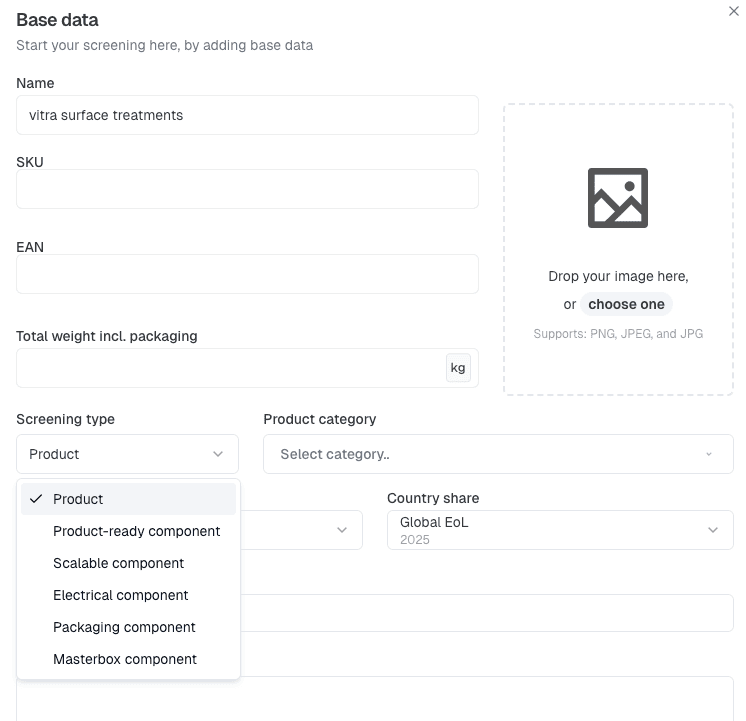
Screening type in base data
To secure accurate calculation and overview, we have specified 6 different Screening types, each with their individual properties and functionality.
It is therefore crucial that you read this guide carefully and choose the right ‘Screening type’ for each of your screenings (both products and components). Using these correctly will save you time, prevent double-work and increase calculation accuracy.
You will find the screening types in your Base Data.
• PRODUCT (default if nothing is chosen)
• PRODUCT READY COMPONENT
• SCALABLE COMPONENT
• ELECTRICAL COMPONENT
• PACKAGING COMPONENT
• MASTERBOX COMPONENT
PRODUCT (default if nothing is chosen)
The standard type used if nothing else is selected. To be used for ALL final product screenings.
Remember always to choose the right ‘Product Category’ as well, this has big implications on the End of life calculations.
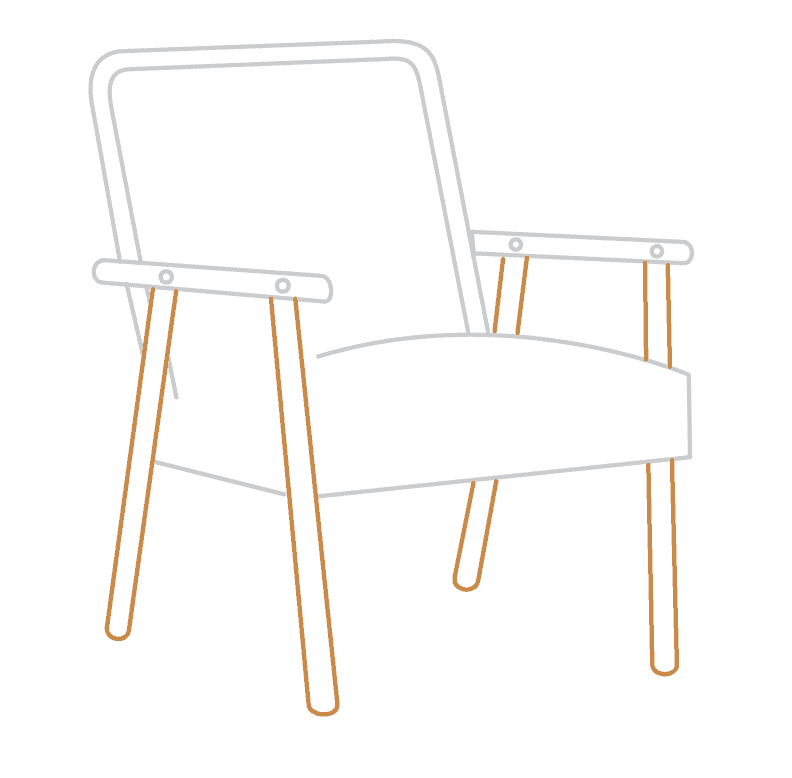
PRODUCT READY COMPONENT
A component that is ready to be inserted into another screening (e.g. a wooden leg that has already been oiled). No further changes/modifications are needed, these components are ‘product-ready’.
Note; When creating this component, it is not mandatory to choose a ‘Product Category’, as this component will inherit the ‘Product Category’ from the screening it is inserted into.
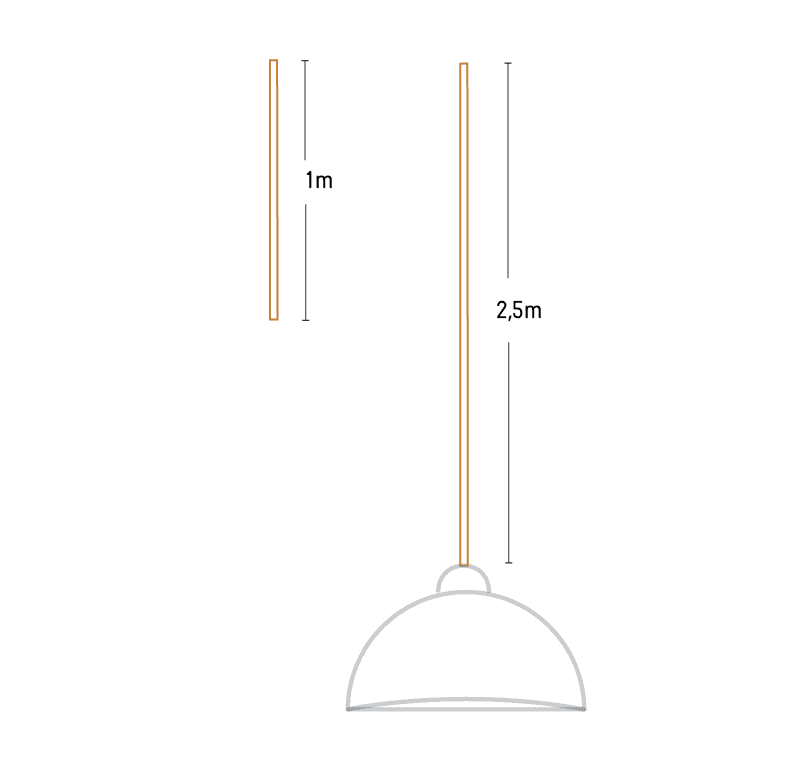
SCALABLE COMPONENT
A component that can be scaled and used across multiple products. It is often used for textiles (e.g. textile per m2) and textile cords for lamps (e.g. cord per m).
The Scalable component itself may have various production waste inputs, but the application waste (e.g. cutting the textile to the finished product) is added in the Component insert process, under ‘Application Waste’. It is characteristic for Scalable components that the ‘Application Waste’ differs from the different products it is inserted into.
Note; This component adapts to the main product screening’s ‘Product Category’ in End of life and moves the final manufacturing processes to the main product screening’s location (as the cutting/application is assumed to take place at the ‘Supplier Location’ of the final product – the assembly point). All energy, and application waste handling is handled at this same ‘Supplier Location’.

ELECTRICAL COMPONENT
An Electrical component is any part of a product that uses or conducts electricity e.g., a motor, switch, or circuit board.
Note; If you add an Electrical component to a product screening, the component keeps its own End of life data. It does not change based on the product it is part of (as electronics are handled separately in waste-handling).
You will furthermore be reminded to include energy consumption data in the final product screening, as any input of such in the Electrical component is not necessary the correct data for the final product (if it has multiple electrical components for instance).
PACKAGING COMPONENT
A Packaging Component represents the materials used for the individual product’s packaging, such as primary and secondary packaging (e.g. boxes, bags, wrapping, or protective elements).
It is used to:
-
Model how a single product is packaged
-
Ensure consistent packaging data across similar products
-
Reflect material use directly linked to the product unit
By creating Packaging Components, you can reuse the same packaging setup across multiple products, avoiding repetitive work and ensuring consistency in your LCA modelling.
Once created, these components are available under ‘Packaging’ when you press ‘add packaging’ in your product screening.
MASTERBOX COMPONENT
A Master Box Component represents the outer packaging often used to group multiple product units for transport and distribution.
It is used to:
-
Model how products are packed together for shipping
-
Improve accuracy in logistics and transport-related calculations
By defining Master Box Components once, you can apply the same Master Box setup across many products, instead of rebuilding it each on each screening.
You will find these components under ‘Packaging’ when you press ‘add masterbox’ in your product screening.
Together, Packaging and Masterbox components help you structure packaging more efficiently while ensuring your climate footprints reflect both product-level and distribution-level realities as well as improve the experience if you improve your packaging setup, as you then only need to change it on the component level, instead of changing it on each individual product screening.
In general, for all components you will be asked whether your component is still designed for disassembly when you lift it into the parent product screening. E.g., a foam component can be designed for disassembly on its own, but once it is included in a chair and upholstered with textile, it is no longer considered designed for disassembly, if it is hidden inside a fix-mounted textile cover.